How to export a Claude chat to PDF, Markdown or Word
Updated 2026-10-28. Menu names in Claude can change; look for "Export data" in its settings.
Short answer: open the chat on claude.ai and click AI Chat Exporter's toolbar button to save it as PDF, Markdown, text or JSON (free) or Word (Pro). To download every chat, use Claude's Settings → Privacy → Export data.
Open the conversation on claude.ai and click the toolbar button.
Choose messages and a format. PDF, Markdown, text and JSON are free; Word (.docx) is part of Pro.
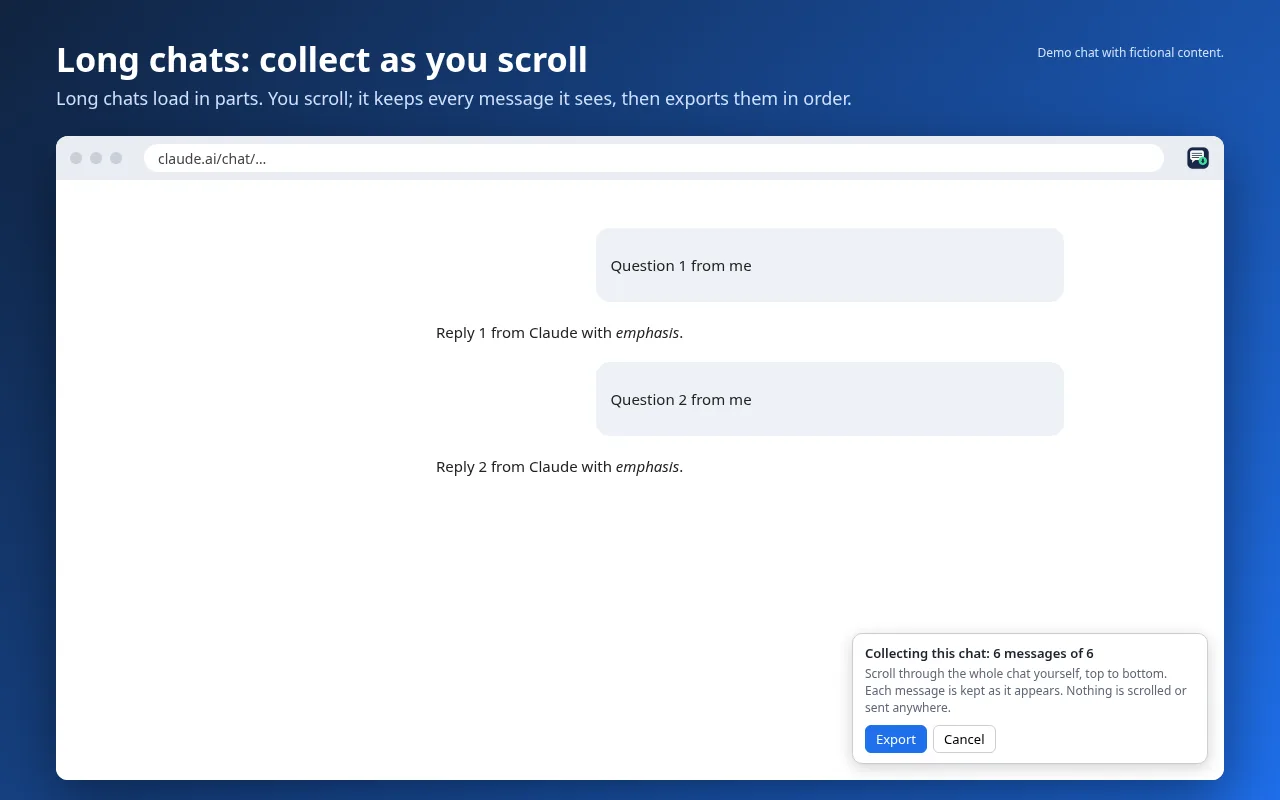
Code, tables, lists and quotes are kept. Long chats: if Claude has only loaded part of the conversation, the extension tells you how many messages are missing; "Collect while I scroll" picks them up as you scroll through the chat.
All your Claude chats
In Claude, open Settings → Privacy → Export data.
Anthropic emails you a link to a .zip that contains conversations.json.
With AI Chat Exporter Pro, drop that .zip on the Archive page to import every chat, then search them or bulk export to Markdown, Word or one PDF.
Everything stays on your computer: the archive lives in your browser's storage and there is no Orvix server.
 AI Chat Exporter